Using SegmentIQ with Shopify Sidekick
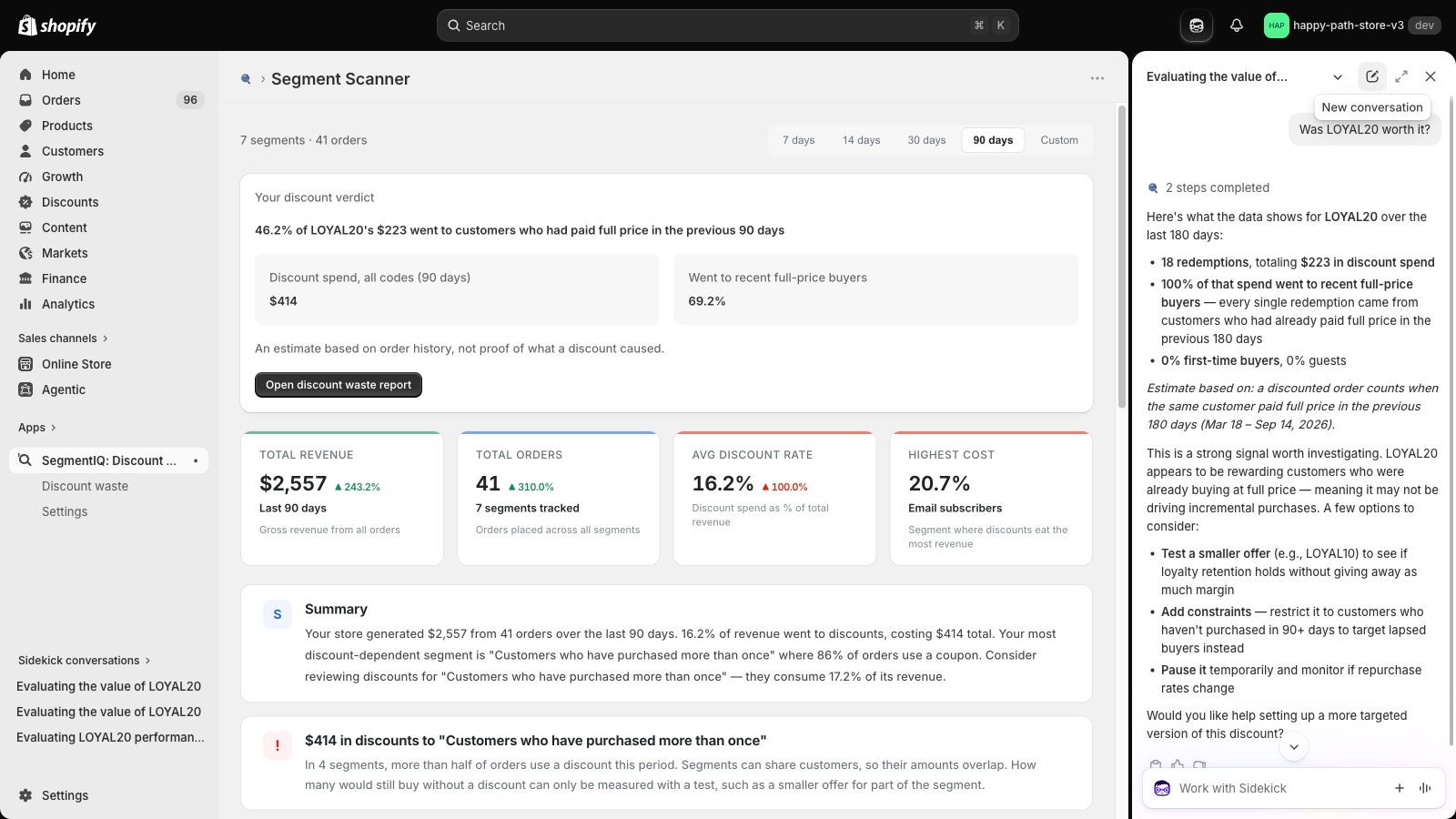
Shopify Sidekick can answer discount questions using your SegmentIQ data, on both the free and Pro plans. You don't need to open the app first.
Example questions
Open Sidekick from the top of your Shopify admin and ask things like:
- "Was LOYAL20 worth it?"
- "How much of WELCOME10 went to customers who had already paid full price?"
- "Which discount codes waste the most discount spend?"
- "Which customer segments get the most discount spend?"
Sidekick answers with the figures from your discount report: redemptions, discount spend, the share that went to recent full-price buyers, and the share from first-time buyers.
The first time you ask
Sidekick asks for permission to use SegmentIQ. Choose Yes (or Yes, and don't ask again).
Tips
- Start a new conversation for a new question. Sidekick keeps using the context of the current conversation.
- Name the code exactly as customers type it, for example LOYAL20.
- If Sidekick answers from Shopify's own reports instead, ask again and mention SegmentIQ, for example "Using SegmentIQ, was LOYAL20 worth it?"
Good to know
- Answers cover the last 90 days on the free plan and the last 180 days on Pro, and always say which period they use.
- The figures are estimates from order history. They show who received a discount, not what the discount caused.
- If SegmentIQ is still importing your orders, Sidekick tells you the analysis hasn't finished yet.
Copy Sidekick prompts
The What to change section of the discount report includes Copy Sidekick prompt buttons. They give Sidekick a ready-made instruction, such as changing who a discount applies to, so you can make the change yourself in your admin.
Related
- SegmentIQ for Shopify Sidekick: what Sidekick receives from SegmentIQ, by plan
- How to check your Shopify discount codes with Sidekick: prompts, where answers stop, and how to act on them